Gateway Configuration...
Accessing Device
Functions
The Gateway Configuration Function Tool allows you to acquire, view, configure and troubleshoot
devices on infiNET EX and Sub-G networks.
- In the RF Channel group box, click on the RF Channel drop-down and select the corresponding RF Channel as applicable.
- In the SG Channel group box, click on the SG Channel drop-down and select the corresponding SG Channel as applicable.
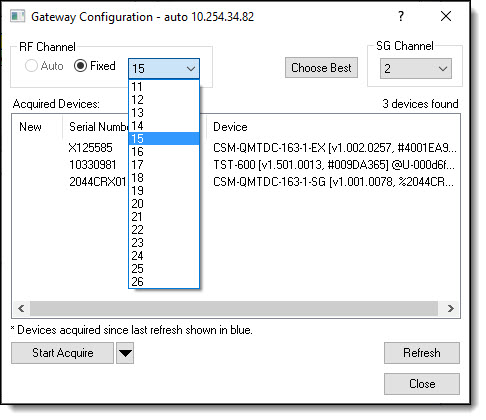
- Alternatively, click the Auto button to set the Gateway to
auto-select mode. Note: The Auto button is not
enabled for the CEN-RFGW-EX and other devices that to do not support automatic
channel selection.
Crestron's RF network provides 16 RF channels in the 2.4GHz ISM band,
specifically IEEE 802.15.4 Channels 11 through 26. The default RF channel
is 15. The Gateway can communicate with up to 16 devices on one channel.
 For optimum performance when installing
the Gateway in a Wi-Fi environment, do not select a channel within a Wi-Fi
channel band. Crestron recommends Channel 15 or Channel 20.
For optimum performance when installing
the Gateway in a Wi-Fi environment, do not select a channel within a Wi-Fi
channel band. Crestron recommends Channel 15 or Channel 20.
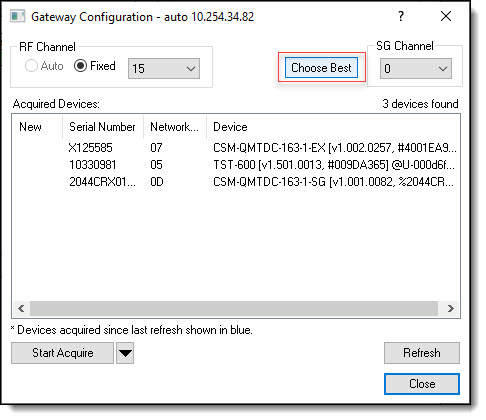
- Click the Choose Best button to allow the Gateway to select the best available SG Channel with greatest link quality available:
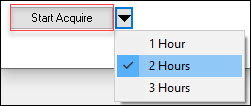
- Click the Start Acquire button the Gateway into acquire mode; click the drop-down to change the timeout:
To Acquire Devices
- With the gateway in Acquire mode and the infiNET (EX)
Gateway dialog still open, go to the device that's closest to the
gateway (as each device acquires the gateway, it will function as
a repeater to reinforce the network), and put it into Acquire mode
as described in the documentation for the device.
- Repeat the above procedure for each device.
As each device is acquired it will be added to the Acquired Devices
list, formatted in blue. The New field will also show an asterisk,
signifying that the device was acquired or connected since the dialog
opened.
- To refresh the list of devices (removing the blue formatting and clearing
the New field), click Refresh.
To Release (un-acquire) Devices
This option only applies to the C2N-MNETGW
and devices that support the Release function. It is hidden for all other
devices (such as the CEN-RFGW-EX).
- Select the device to
be disconnected from the network (to multi-select press the Ctrl or
Shift key) and click Release Selected.
This will automatically refresh the Acquired Devices list.
To Exit Acquire mode
- When the Acquire process is complete, the Gateway can be taken out of
Acquire mode by:
- Click the Stop Acquire button.
-or-
- Pressing the Acquire button on the Gateway itself.
-or-
- Waiting for the Timeout period to expire.